
Order Status Flow Explained
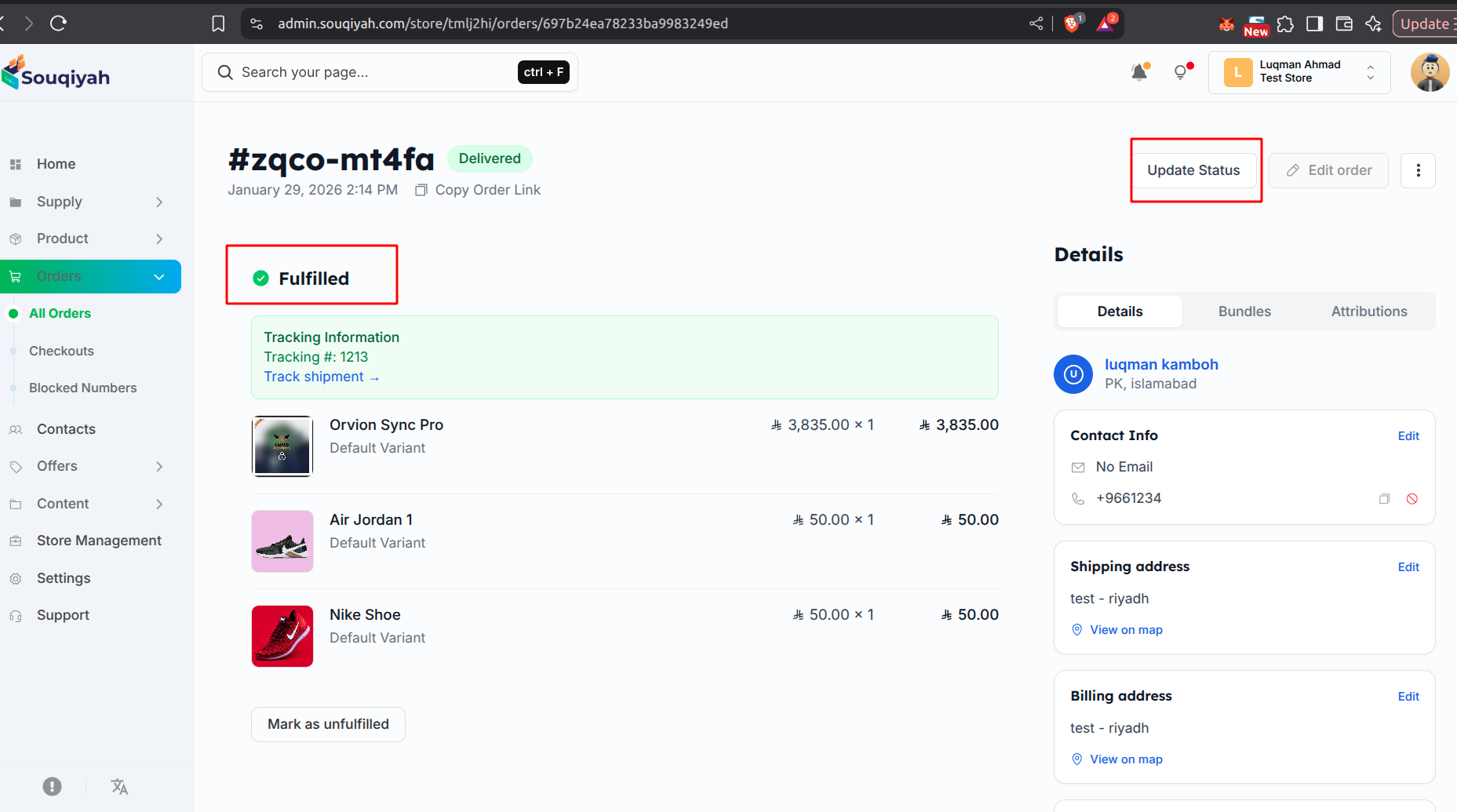
Understanding Order Status
- Status shows where an order is in the process
- Update status as you process the order
- Customers can see status updates (depending on settings)
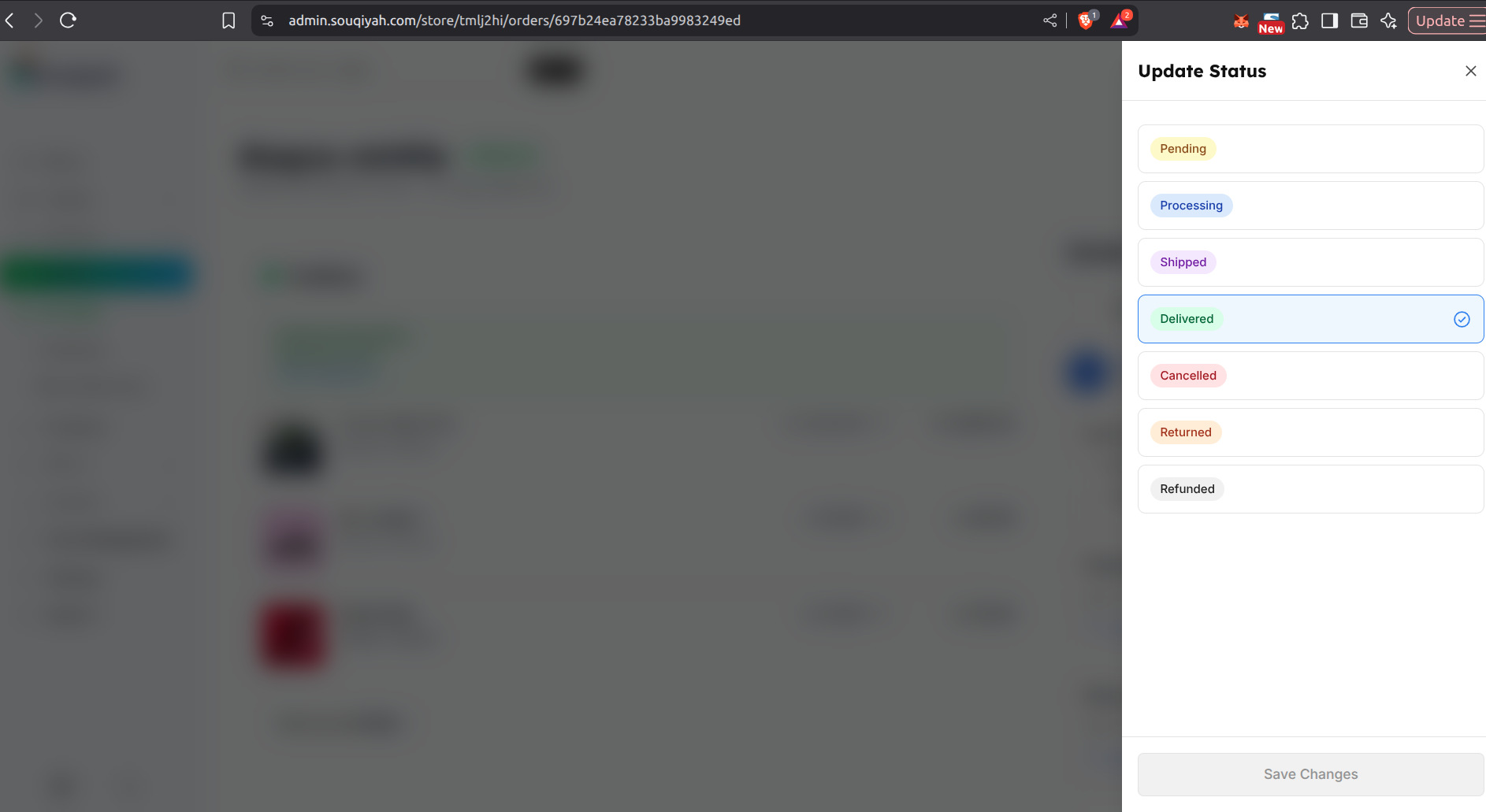
Common Order Statuses
Pending
- Order just received
- Waiting to be processed
- Default status for new orders
Processing
- Order is being prepared
- Items are being gathered
- Payment is being verified
Shipped
- Order has been shipped
- Tracking information added
- Package is on the way
Delivered
- Order delivered to customer
- Final status
- Order complete
Cancelled
- Order was cancelled
- Not fulfilled
- May be refunded
Returned
- Customer returned the order
- Refund may be processed
- Items returned to inventory
Refunded
- Payment refunded to customer
- Order closed
- Funds returned
How to Update Order Status
Method 1: Update Single Order
- Open the order details
- Find the status section
- Click the status dropdown or "Update Status"
- Select the new status
- Save changes
Method 2: Update Multiple Orders
- Select multiple orders using checkboxes
- Click "Update Status"
- Choose the new status
- Confirm
- All selected orders are updated
Method 3: Using Status Drawer
- Click "Update Status" on an order
- A drawer opens on the right
- Click the status you want
- Click "Save"
- Status is updated
Status Flow Best Practices
- Update status promptly
- Keep status current
- Don’t skip statuses
- Notify customers of important changes