
Canceling & Managing Failed Orders
Understanding Order Cancellation
- Cancellation stops the order from being fulfilled
- Payment may be refunded
- Items return to inventory
- Customer is notified
How to Cancel an Order
Step 1: Opening the Order
- Go to the Orders page
- Click the order you want to cancel
- Or click "View" in the Actions column
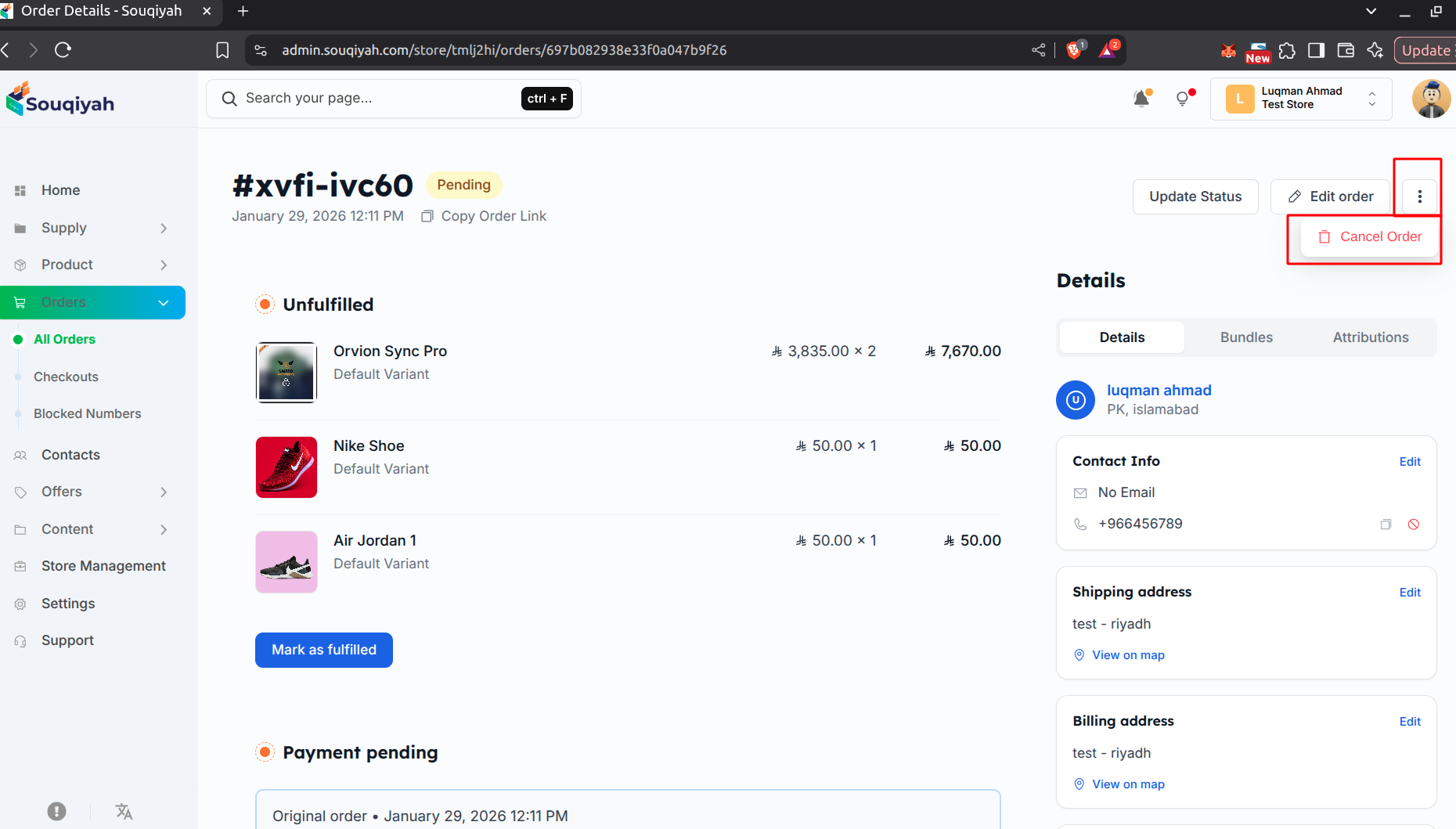
Step 2: Finding Cancel Option
- In order details, click the three-dot menu (top right)
- Select "Cancel Order"
- Or use the cancel button if available
Step 3: Cancel Order Popup
- A popup opens with:
- Refund amount field
- "Issue refund" checkbox
- Cancellation reason (if available)
Step 4: Setting Refund Amount
- Enter the amount to refund
- Default is the full order amount
- You can enter a partial refund if needed
Step 5: Choosing Refund Option
- Check "Issue refund" to refund the customer
- Uncheck to cancel without refund
- Refund is processed automatically if checked
Step 6: Confirming Cancellation
- Review the refund amount
- Check the refund option
- Click "Cancel order"
- Order is cancelled
- Refund is issued (if selected)
- Customer is notified
- Items return to inventory
Step 7: After Cancellation
- Order status changes to "Cancelled"
- Order cannot be fulfilled
- Refund is processed (if selected)
- Items are back in stock
Managing Failed Orders
What are Failed Orders?
- Orders that can’t be completed due to:
- Payment failure
- Processing errors
- Stock issues
- Other problems
Identifying Failed Orders
Payment Failed
- Payment status shows "Payment failed"
- Payment not received
- Order cannot be fulfilled
Processing Error
- Order stuck in processing
- Error message displayed
- Needs attention
Fulfillment Failed
- Cannot fulfill order
- Stock unavailable
- Shipping issue
Handling Failed Orders
Step 1: Finding Failed Orders
- Filter orders by status
- Look for error messages
- Check order details for issues
Step 2: Resolving Payment Failures
- Contact the customer
- Request new payment method
- Update payment information
- Retry payment
Step 3: Fixing Processing Errors
- Review error details
- Fix the underlying issue
- Retry processing
- Contact support if needed
Step 4: Handling Fulfillment Failures
- Check stock availability
- Update inventory if needed
- Retry fulfillment
- Or cancel the order if it can’t be fixed
Step 5: Deciding Next Steps
- Retry: Fix the issue and try again
- Cancel: Cancel the order if it can’t be resolved
- Refund: Issue refund if needed
- Notify: Inform the customer
Cancellation Best Practices
- Cancel promptly when needed
- Issue refunds quickly
- Notify customers of cancellation
- Explain the reason
- Return items to inventory
- Keep records of cancellations