
How to Fulfill an Order
Understanding Fulfillment
- Fulfillment means the order is packed and ready to ship
- Add tracking information so customers can track delivery
- Marking as fulfilled updates the order status
Step 1: Opening an Order
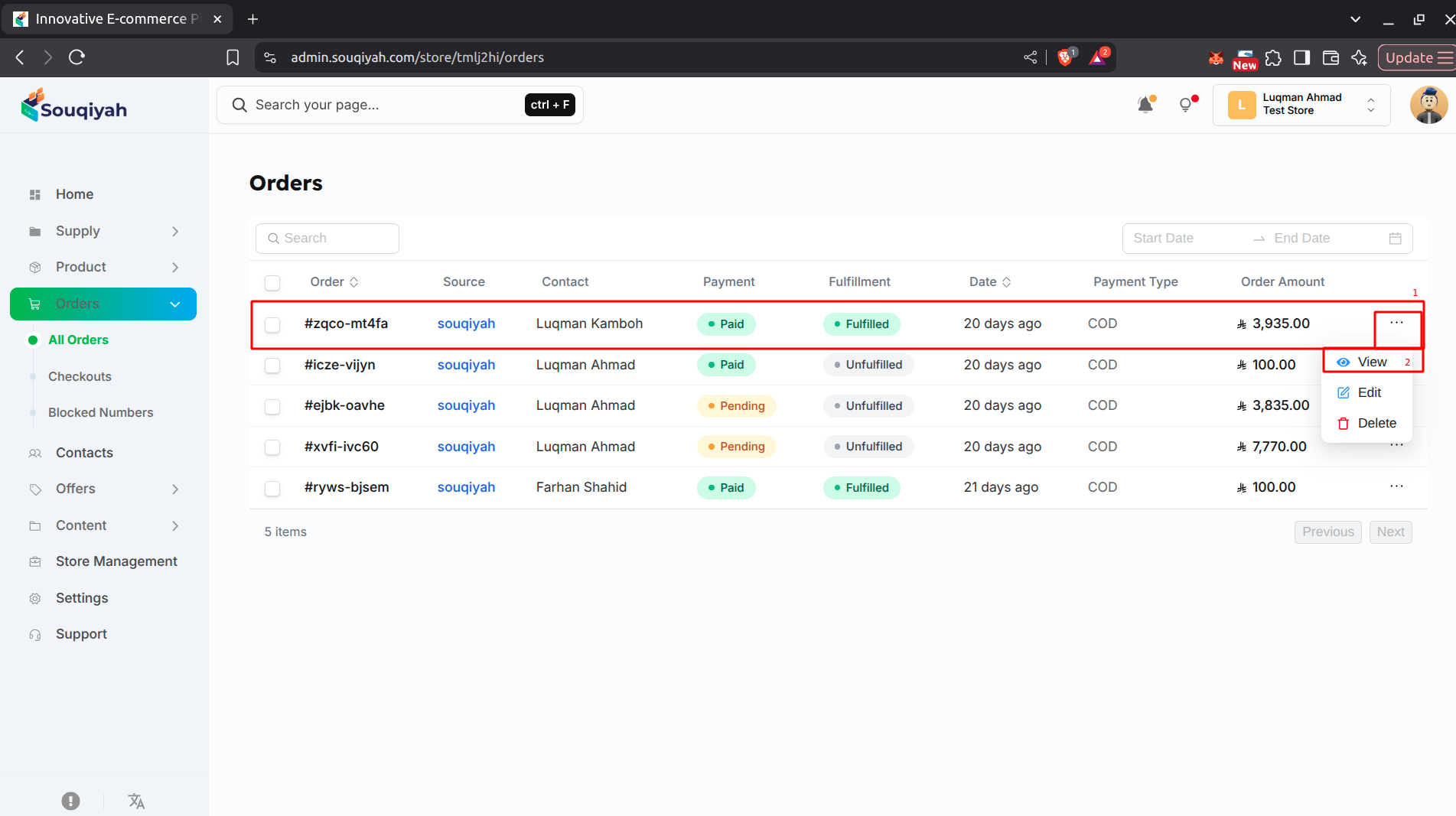
- Go to the Orders page
- Click the order you want to fulfill
- Or click "View" in the Actions column
Step 2: Checking Fulfillment Status
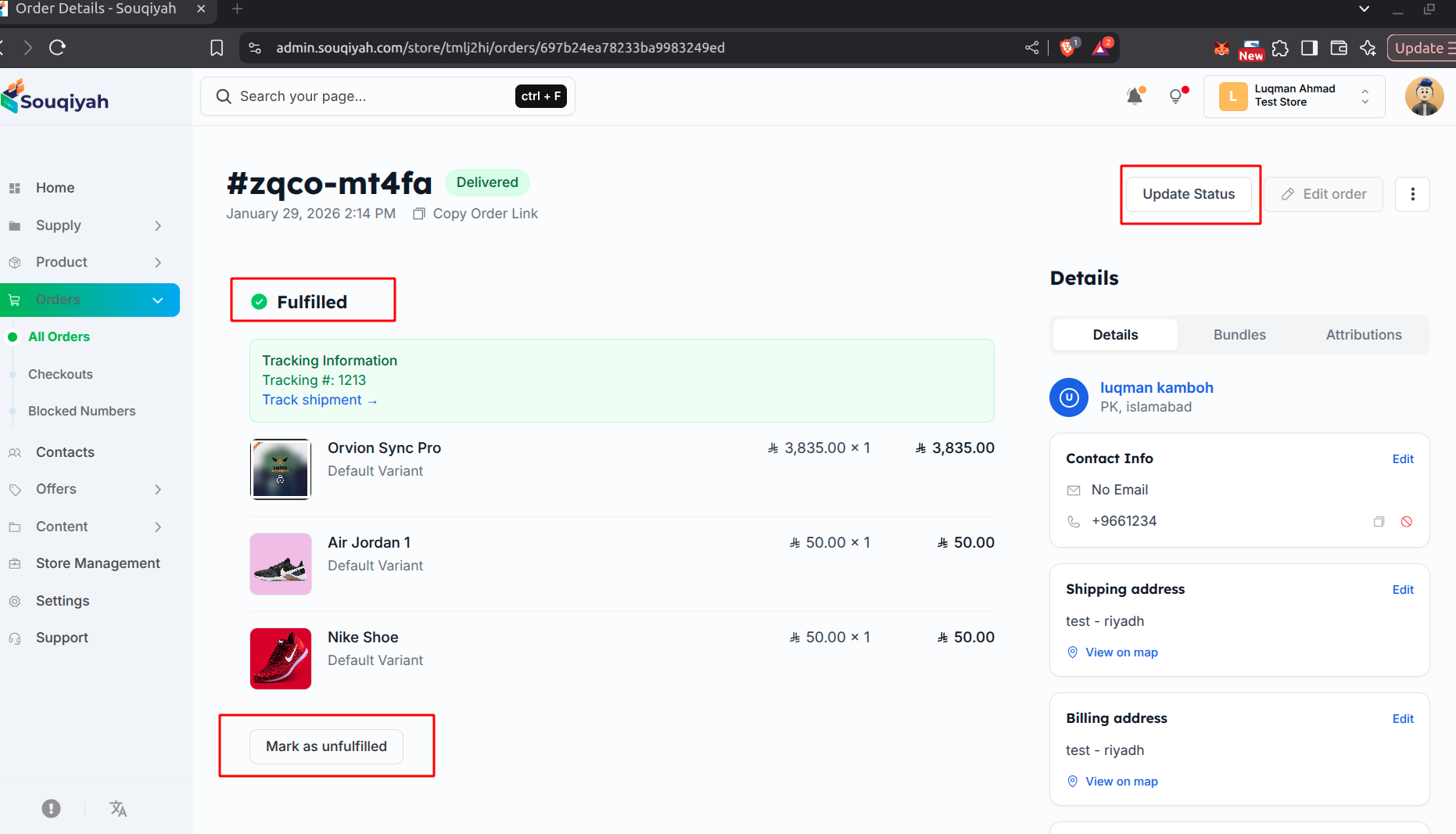
- At the top of the order details, you’ll see:
- "Unfulfilled" (orange) if not yet fulfilled
- "Fulfilled" (green) if already fulfilled
Step 3: Marking Order as Fulfilled
- If unfulfilled, click "Mark as fulfilled"
- A popup opens with:
- List of items in the order
- Fields for tracking information
Step 4: Adding Tracking Information
- Tracking Number: Enter the number from your shipping carrier (e.g., "1Z999AA10123456784")
- Tracking Link: Enter the full URL to the carrier’s tracking page
- Carrier: Select from the dropdown:
- Aramex
- DHL
- Other carriers
- If your carrier isn’t listed, enter it manually in notes
Step 5: Reviewing Order Items
- The popup shows all items:
- Product images
- Product names
- Quantities
- Prices
- Verify all items are correct before fulfilling
Step 6: Completing Fulfillment
- Review tracking details
- Click "Fulfill items"
- The order is marked as fulfilled
- Tracking information is saved
- The customer is notified (if notifications are enabled)
Step 7: After Fulfillment
- The order shows "Fulfilled" with a green checkmark
- Tracking information is displayed in a card
- Customers can click the tracking link to track their package
Tips for Fulfillment
- Fulfill orders promptly
- Double-check tracking numbers
- Verify tracking links work
- Select the correct carrier