
How to View & Manage Orders
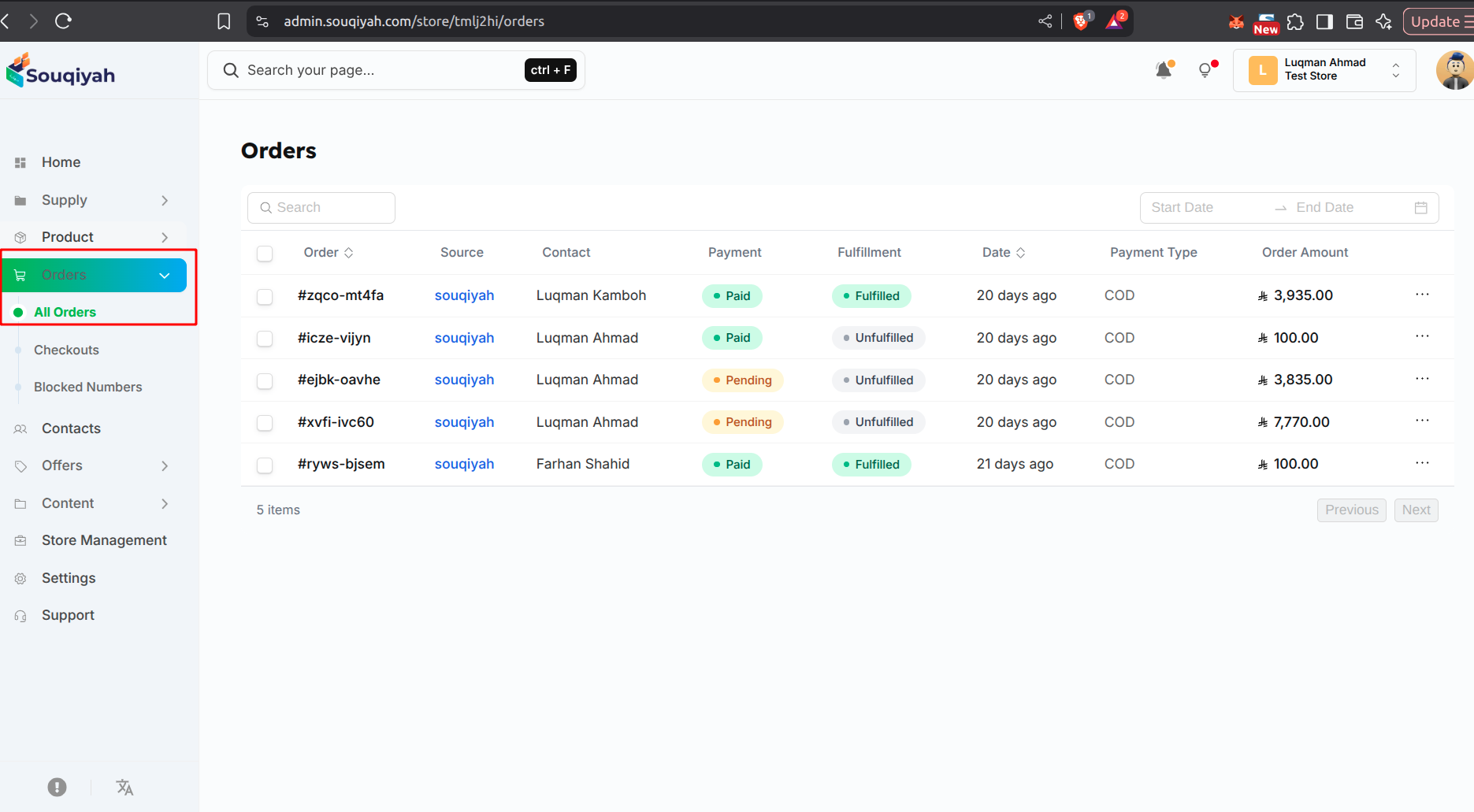
Step 1: Accessing Your Orders
- Go to the Orders page from the sidebar
- You’ll see a table of all orders
- Each row shows customer, items, total, payment type, and status
Step 2: Understanding the Orders Table
- Customer: Name and contact info
- Item: Product name
- Qty: Quantity ordered
- Total: Order total
- Payment: COD or Prepaid
- Source: Where the order came from
- Created: Order date
- Status: Current status (Pending, Processing, Shipped, etc.)
- Actions: Quick actions (View, Edit, etc.)
Step 3: Finding Specific Orders
- Use the search bar at the top
- Search by order number, customer name, or product name
- Results update as you type
Step 4: Filtering Orders
- Click the filter icon in the table header
- Filter by:
- Status (Pending, Shipped, Delivered, etc.)
- Payment type (COD or Prepaid)
- Date range
- Customer name
- Click "Apply" to see filtered results
- Click "Reset" to clear filters
Step 5: Viewing Order Details
- Click any order row to open details
- Or click "View" in the Actions column
- Details include:
- Customer information
- Order items
- Shipping address
- Payment details
- Order history
Step 6: Working with Multiple Orders
- Check the boxes next to orders
- Or use "Select All"
- Available actions:
- Update status for all selected
- Delete selected orders
- Export selected orders
Step 7: Exporting Orders
- Click "Export" at the top right
- Choose to export all, filtered, or selected orders
- Download as CSV or Excel
- Includes order details, customer info, and payment info
Common Issues and Solutions
Can't View Orders
- Solution: Check your permissions, make sure you selected the correct store, refresh the page
Can't Fulfill Order
- Solution: Check order status, verify stock is available, make sure payment is received (for prepaid orders)
Tracking Not Working
- Solution: Verify tracking number is correct, check carrier website, test tracking link
Can't Cancel Order
- Solution: Check order status, verify you have permission, make sure order isn't already cancelled
Payment Status Not Updating
- Solution: Refresh the page, check payment gateway, verify payment confirmation
Order History Not Showing
- Solution: Check order details page, verify history is enabled, refresh the page
Unsupported block: delimiter
Best Practices
- Order Processing
- Process orders promptly
- Update status regularly
- Fulfill orders quickly
- Communicate with customers
- Payment Management
- Monitor payment status
- Mark COD as paid promptly
- Verify prepaid payments
- Handle refunds quickly
- Tracking
- Add tracking information promptly
- Verify tracking details
- Keep tracking current
- Monitor shipments
- Customer Service
- Respond to inquiries quickly
- Provide order updates
- Handle issues promptly
- Maintain good communicatio