
Managing Inventory & Stock Levels
Tracking Inventory
- Choose whether to track stock:
- Track: Monitor how many you have
- Do Not Track: Unlimited stock
Setting Up Stock Tracking
- Go to the Inventory section on the right
- Select "Track" to monitor stock
- Enter how many items you have
- Set a low stock alert number (e.g., 20)
- Save
Stock Status Indicators
- Current: Stock is good (green)
- Low: Stock is at or below your threshold (yellow)
- Out of Stock: No items available (red)
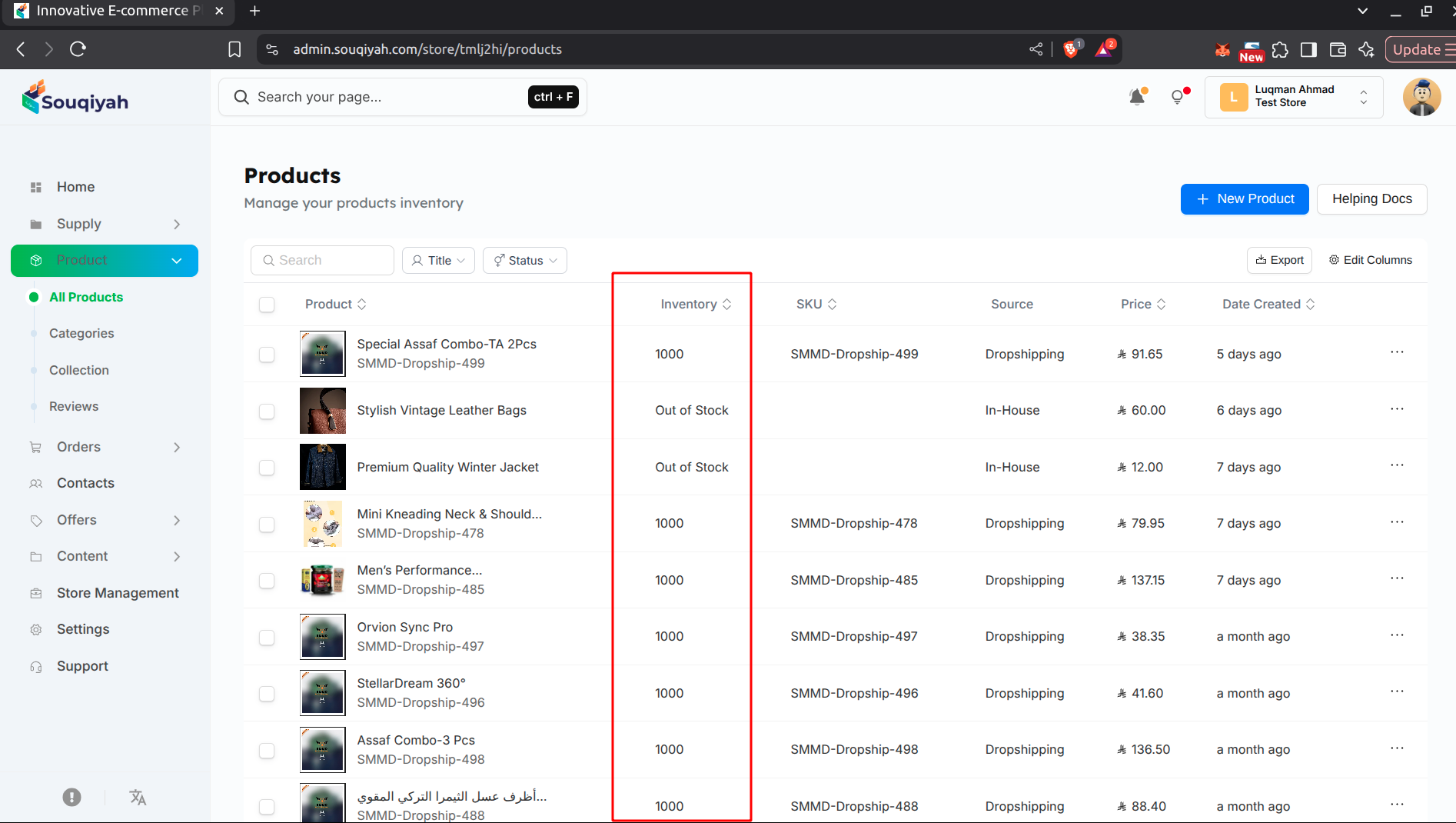
Viewing Stock Levels
- Check the Products table for stock quantities
- Open product details for full inventory info
- Look for low stock alerts on the dashboard
Updating Stock
- Edit the product
- Go to the Inventory section
- Update the quantity
- Save
Stock Updates
- Stock decreases automatically when orders are placed
- Stock increases automatically when items are returned
Inventory Tips
- Check stock regularly
- Set realistic low stock alerts
- Plan ahead for busy seasons
- Keep extra stock for popular items