
How to Create a Product
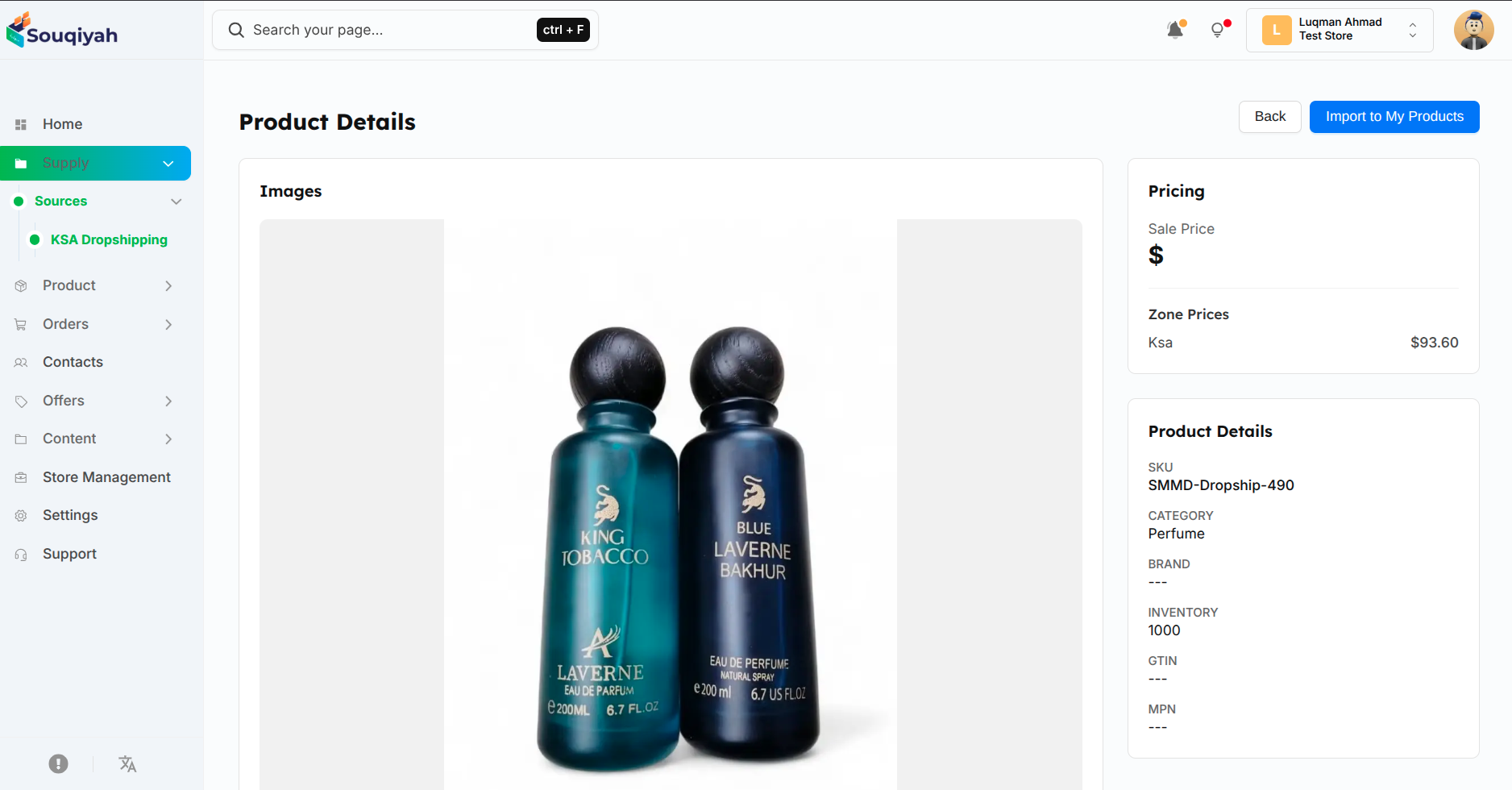
Step 1: Select Product to Import
- From Product Table:
- Find the product
- Click "Import" or "View" then "Import"
- From Product Details:
- Click "Import to Store"
- Confirm import
Step 2: Import Process
When you import:
- Product Creation:
- Product created in your store
- All details copied
- Images uploaded
- Variants created (if applicable)
- Pricing Setup:
- Cost price from supplier
- Sale price (zone-based)
- Compare at price
- Currency conversion (if needed)
- Inventory Setup:
- Stock quantity synced
- Inventory policy set
- Low stock threshold configured
- Variants Creation:
- Default variant created
- Additional variants (if product has options)
- Each variant with pricing
Step 3: Post-Import
After import:
- Product Status:
- Product appears in your Products section
- Status: Draft (default)
- Ready to edit and publish
- Next Steps:
- Edit product details
- Adjust pricing
- Set inventory levels
- Add to collections
- Publish product
Common Issues and Solutions
Can't Save Product
- Make sure title and sale price are filled
- Check for error messages
- Verify you have permission
Images Won't Upload
- Check file format (JPG, PNG, WebP)
- Try a smaller file size
- Check your internet connection
Variants Not Showing
- Make sure you added values to each option
- Refresh the page
- Check for error messages
Price Not Saving
- Use numbers with decimals (e.g., 99.99)
- Check currency settings
- Make sure required fields are filled
Stock Not Updating
- Make sure inventory tracking is enabled
- Use whole numbers for quantity
- Refresh the page
Product Not Showing in Store
- Check status is set to "Publish"
- Verify availability is "Online Only"
- Make sure stock is available
Unsupported block: delimiter
Best Practices
- Product Information
- Fill in all important fields
- Use high-quality images
- Write clear descriptions
- Set accurate prices
- Organization
- Use categories to organize products
- Add tags for easy searching
- Use consistent naming
- Inventory
- Track stock for physical products
- Set low stock alerts
- Check stock regularly
- Update quantities promptly
- Pricing
- Research competitor prices
- Use Compare At Price to show discounts
- Create attractive offers
- Keep pricing clear
- Variants
- Organize variants logically
- Use clear option names
- Set appropriate prices
- Track stock per variant