
Managing Promotional Campaigns
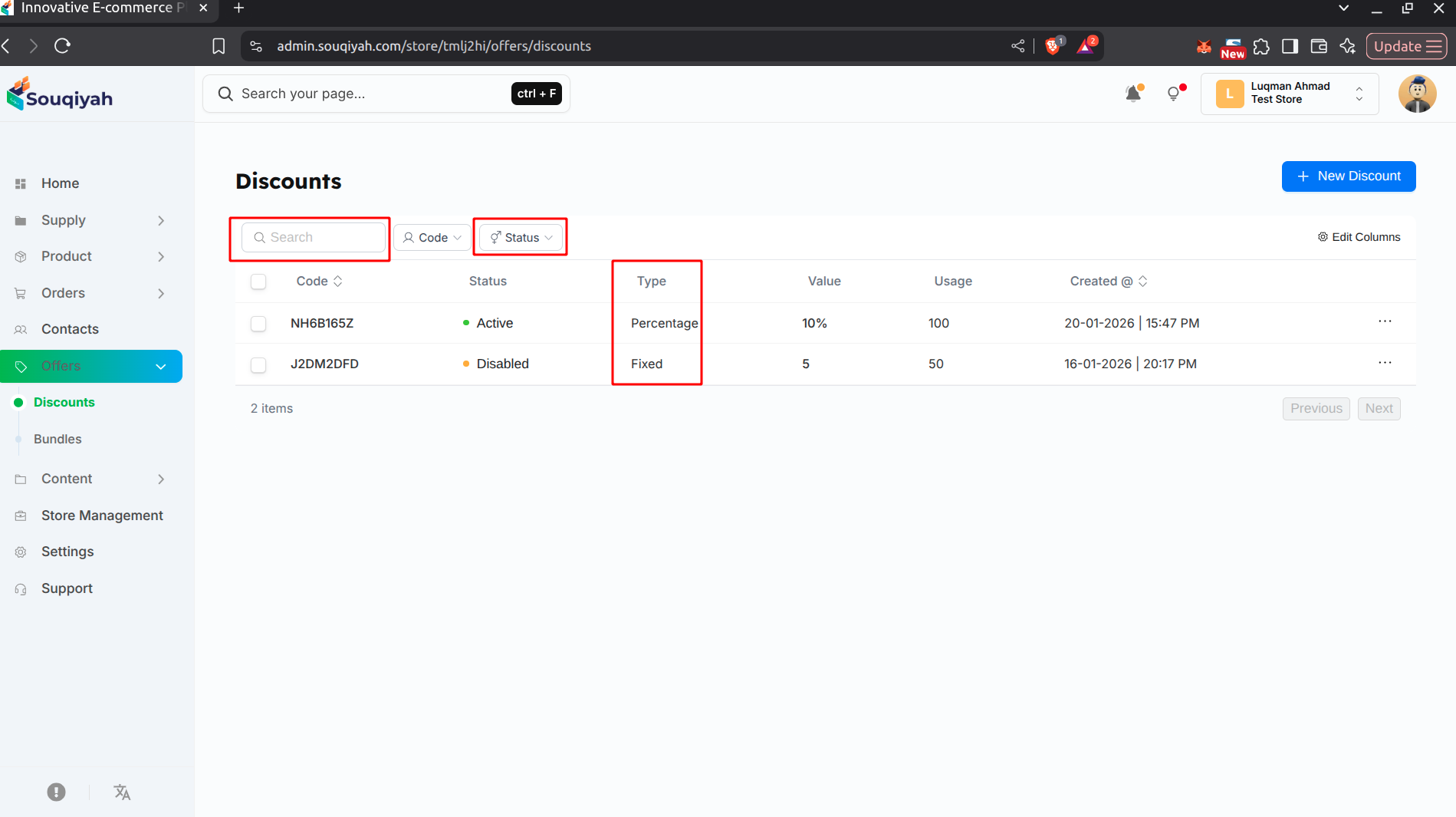
Step 1: Viewing All Discounts
- Go to Offers → Discounts
- Table shows:
- Code
- Status (Active, Disabled, Expired)
- Type (Percentage or Fixed)
- Value
- Usage count
- Created date
Step 2: Searching Discounts
- Use the search bar at the top
- Search by code
- Results update as you type
Step 3: Filtering Discounts
- Click the filter icon
- Filter by:
- Status (Active, Disabled, Expired)
- Type (Percentage, Fixed)
- Date range
- Click "Apply" to see filtered results
Step 4: Editing a Discount
- Click "Edit" (pencil icon) on a discount
- Make changes
- Click "Save"
- Changes take effect immediately
Step 5: Activating or Deactivating
- Edit the discount
- In Summary, change Status:
- Active: Enable
- Disabled: Disable
- Save changes
Step 6: Deleting Discounts
- Click "Delete" (trash icon) on a discount
- Confirm deletion
- Cannot be undone
Step 7: Viewing Discount Details
- Click on a discount row to view full details
- See:
- All settings
- Usage statistics
- Applied products/tags
- Date information
Campaign Management Tips
- Review active discounts regularly
- Deactivate expired campaigns
- Monitor usage to see what works
- Create seasonal campaigns
- Test different discount types