
Applying Offers to Products
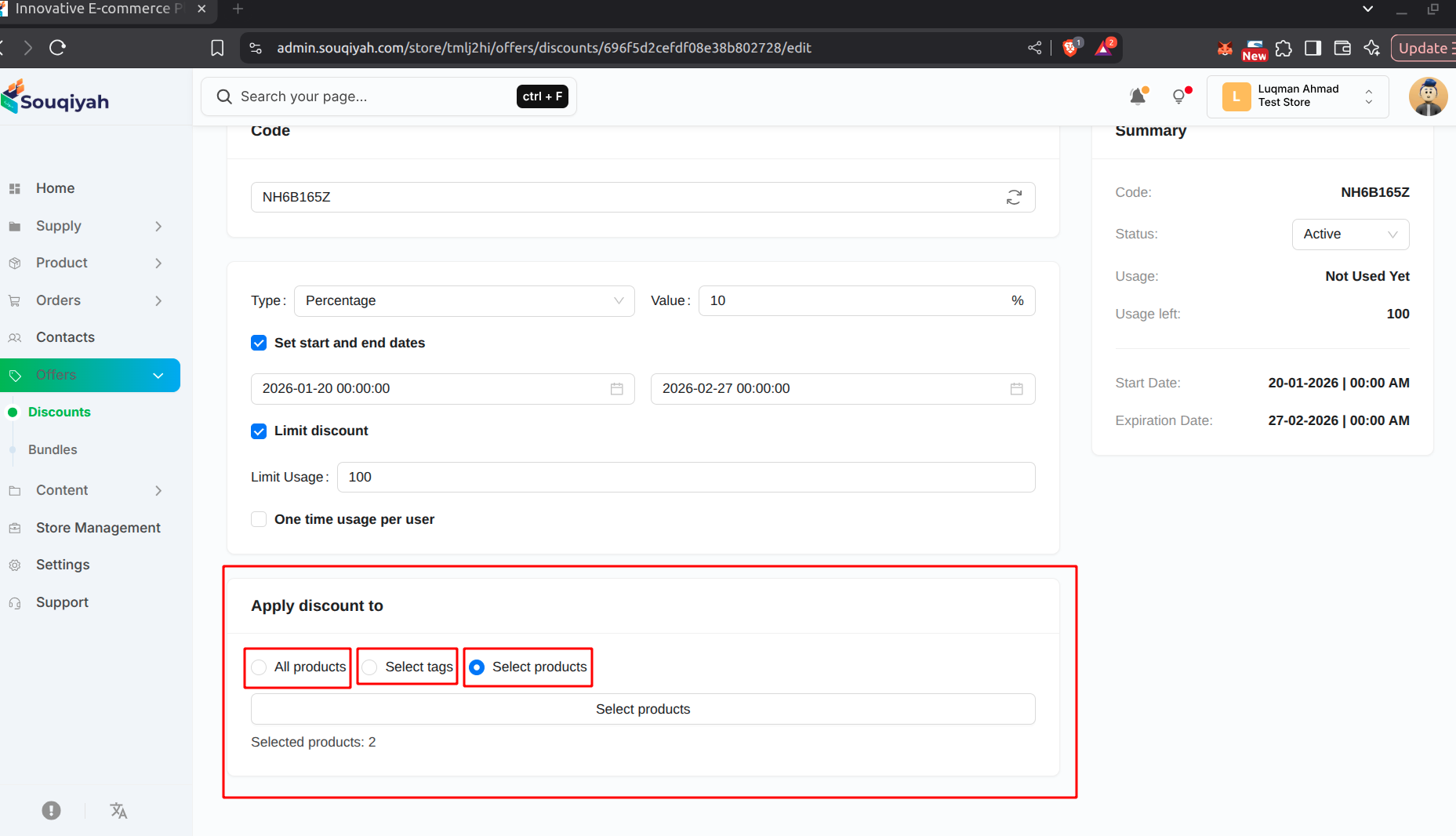
Method 1: Apply to All Products
- When creating discount:
- Select "All products"
- Discount applies to everything
- Simplest option
Method 2: Apply to Product Tags
- When creating discount:
- Select "Select tags"
- Enter product tags
- Products with matching tags get the discount
- Example: Tag "sale" applies to all "sale" products
Method 3: Apply to Selected Products
- When creating discount:
- Select "Select products"
- Click "Select products"
- Choose products from the list
- Click "Done"
- Only selected products get the discount
Step-by-Step: Applying to Tags
- Create new discount
- Choose "Select tags"
- Enter tags (e.g., "winter", "clearance")
- Products with these tags get the discount
- Save discount
Step-by-Step: Applying to Selected Products
- Create new discount
- Choose "Select products"
- Click "Select products"
- Search or browse products
- Check products to include
- Click "Done"
- Selected count is shown
- Save discount
Editing Product Selection
- Edit the discount
- Change "Apply discount to" option
- Update tags or product selection
- Save changes
Checking Applied Products
- View discount details
- See which products/tags it applies to
- Verify selection is correct
Application Tips
- Use tags for category-wide discounts
- Use selected products for specific items
- Use all products for store-wide sales
- Test discount on a product before launching
- Verify products have correct tags