
Updating Customer Details
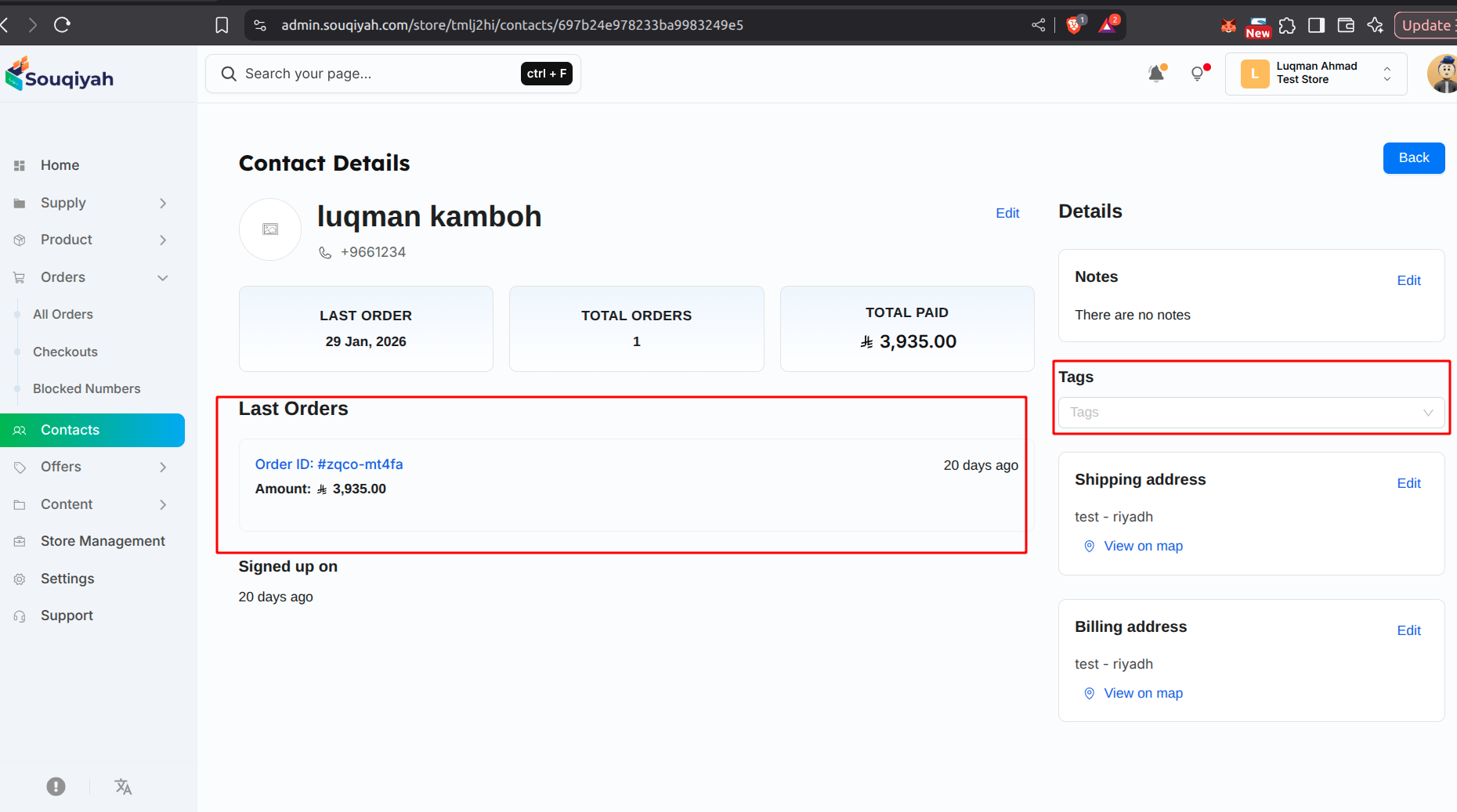
Step 1: Opening Customer Details
- Go to the Contacts page
- Click on the customer you want to update
- Or click "Edit" in the Actions column
- Customer details page opens
Step 2: Editing General Information
- Find the General Info section
- Update:
- First Name
- Last Name
- Phone Number
- Status
- Make your changes
- Changes save automatically or click "Save"
Step 3: Updating Profile Picture
- Go to the Media section
- Click "Upload" or "Change"
- Select a new image
- Crop or adjust if needed
- Save the new picture
Step 4: Updating Addresses
- Find the Address sections:
- Billing Address
- Shipping Address
- Postal Address
- Click "Edit" on the address you want to change
- Update address fields:
- Street address
- City
- State/Province
- Zip/Postal code
- Country
- Save changes
Step 5: Adding or Removing Tags
- Go to the Tags section
- To add: Type tag name and press Enter
- To remove: Click the X on the tag
- Tags update automatically
Step 6: Adding Notes
- Find the Notes section
- Click "Add Note" or "Edit"
- Enter your note
- Save the note
- Notes help track customer interactions
Step 7: Saving Changes
- Review all changes
- Click "Update Customer" or "Save"
- Wait for confirmation
- Changes are saved
Step 8: Updating from Orders
- When processing orders, you can update customer info
- If customer provides new address during checkout
- Update contact information if needed
- Keep records current
Update Best Practices
- Update information promptly
- Verify changes with customers when possible
- Keep addresses current
- Remove outdated tags
- Add notes about important interactions
- Review and clean up data regularly