
Importing Contacts
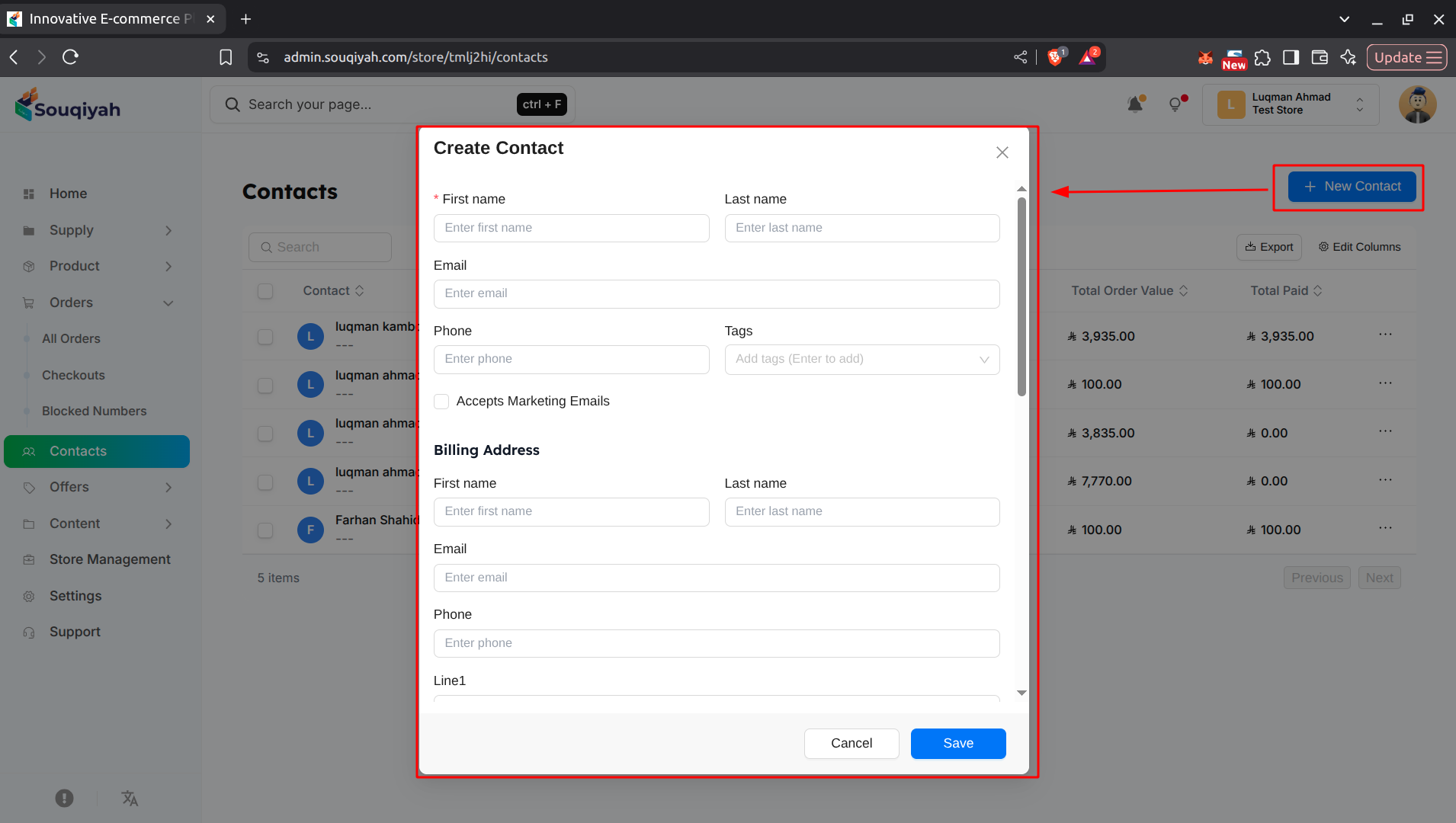
Step 1: Preparing Your File
- Use CSV format
- Include these columns:
- First Name (required)
- Last Name
- Phone
- Address fields (optional)
- Make sure data is clean and formatted correctly
Step 2: Accessing Import
- Go to the Contacts page
- Click "Import" button (if available)
- Or look for import option in the menu
Step 3: Uploading Your File
- Click "Choose File" or "Browse"
- Select your CSV file
- Click "Upload"
- Wait for file to process
Step 4: Mapping Columns
- Map your CSV columns to contact fields:
- First Name → First Name
- Last Name → Last Name
- Email → Email
- Phone → Phone
- Address → Address fields
- Verify all mappings are correct
Step 5: Reviewing Import Preview
- Review preview of contacts to be imported
- Check for errors or missing data
- Fix any issues before importing
Step 6: Completing Import
- Click "Import All" or "Import"
- Wait for import to complete
- Review import results:
- Success count
- Failed imports (if any)
- Error messages
Step 7: After Import
- Check imported contacts in the table
- Verify information is correct
- Fix any errors manually
- Add missing information if needed
Import Tips
- Test with a small file first
- Ensure all required fields are filled
- Check email and phone formats
- Remove duplicate entries before importing
- Keep a backup of your original file