
Managing Customers & Contacts
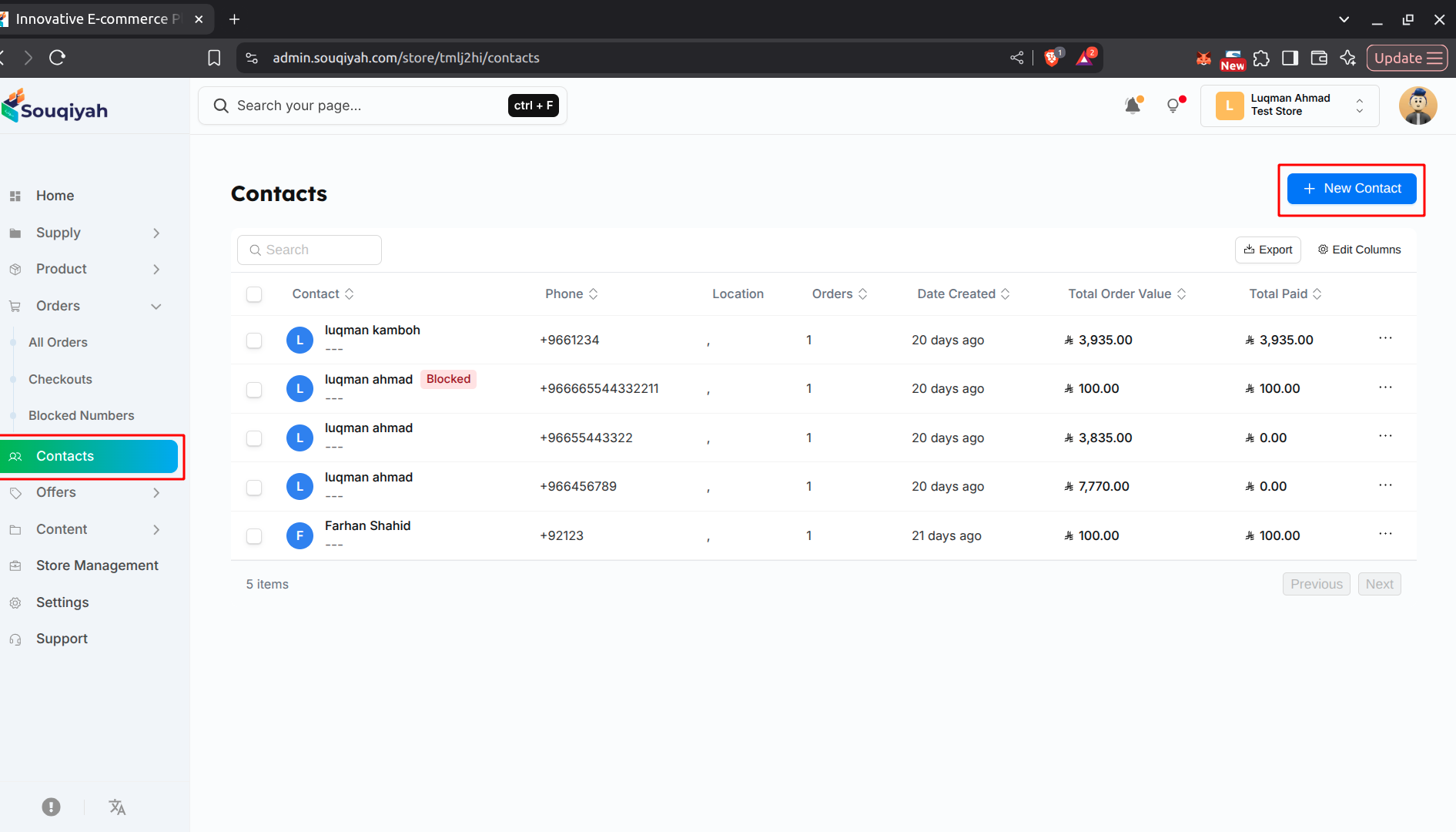
Step 1: Accessing Your Contacts
- Go to the Contacts or Customers page from the sidebar
- You’ll see a table of all your contacts
- Each row shows name, phone, order count, and creation date
Step 2: Understanding the Contacts Table
- Name: Customer’s full name
- Phone: Contact phone number
- Orders: Number of orders placed
- Created: Date customer was added
- Actions: Quick actions (View, Edit, Delete)
Step 3: Finding Specific Contacts
- Use the search bar at the top
- Search by name, phone, or email
- Results update as you type
Step 4: Filtering Contacts
- Click the filter icon in the table header
- Filter by:
- Date range (when they were added)
- Order count
- Status
- Click "Apply" to see filtered results
- Click "Reset" to clear filters
Step 5: Viewing Contact Details
- Click any contact row to open details
- Or click "View" in the Actions column
- Details include:
- Contact information
- Addresses (billing, shipping, postal)
- Order history
- Notes and tags
Step 6: Creating a New Contact
- Click "Create Customer" at the top right
- Fill in the form:
- General Info: First name, last name, email, phone
- Media: Upload profile picture (optional)
- Addresses: Billing, shipping, and postal addresses
- Click "Create Customer" to save
Step 7: Working with Multiple Contacts
- Check boxes next to contacts
- Or use "Select All"
- Available actions:
- Delete selected contacts
- Export selected contacts
- Bulk update (if available)
Step 8: Exporting Contacts
- Click "Export" (if available)
- Choose to export all, filtered, or selected contacts
- Download as CSV or Excel
- Includes contact details, addresses, and order information
Common Issues and Solutions
Can't View Contacts
- Solution: Check your permissions, make sure you selected the correct store, refresh the page
Import Failed
- Solution: Check file format (must be CSV), verify required columns are present, check data formatting
Can't Update Customer
- Solution: Verify you have edit permissions, check if customer exists, refresh the page
Tags Not Saving
- Solution: Make sure you press Enter after typing tag, refresh the page, check for errors
Order History Not Showing
- Solution: Check if customer has placed orders, verify order is linked to customer, refresh the page
Address Not Updating
- Solution: Make sure all required fields are filled, verify address format, save changes
Unsupported block: delimiter
Best Practices
- Contact Management
- Keep information current
- Update addresses promptly
- Add notes about interactions
- Use tags for organization
- Data Quality
- Verify email and phone formats
- Remove duplicate contacts
- Clean up outdated information
- Regular data review
- Segmentation
- Use consistent tag names
- Keep tags simple
- Review tags regularly
- Use for targeted marketing
- Customer Service
- Review order history regularly
- Use history for recommendations
- Track customer preferences
- Provide personalized service
- Import Management
- Test imports with small files
- Verify data before importing
- Keep backups
- Review imported data