
Recent Activity & Notifications
Step 1: Accessing Notifications
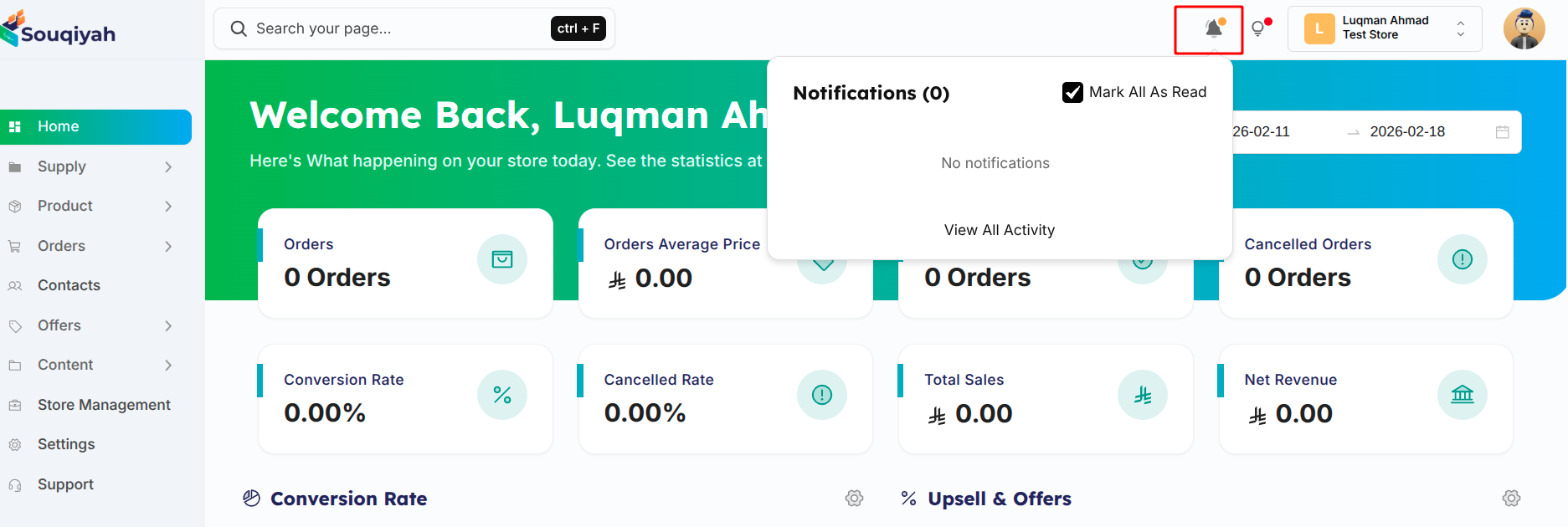
- Location: Top right header
- Icon: Bell icon with badge
- Badge: Shows unread count (orange dot)
Step 2: Understanding Notifications
Notification Types
- Order Notifications
- New order received
- Order status changed
- Order cancelled
- Order delivered
- Icon: Parcel/Map
- Payment Notifications
- Payment received
- Payment failed
- Refund processed
- Icon: Shopping bag
- Shipping Notifications
- Order shipped
- Delivery updates
- Tracking updates
- Icon: Truck
- General Notifications
- System updates
- Account changes
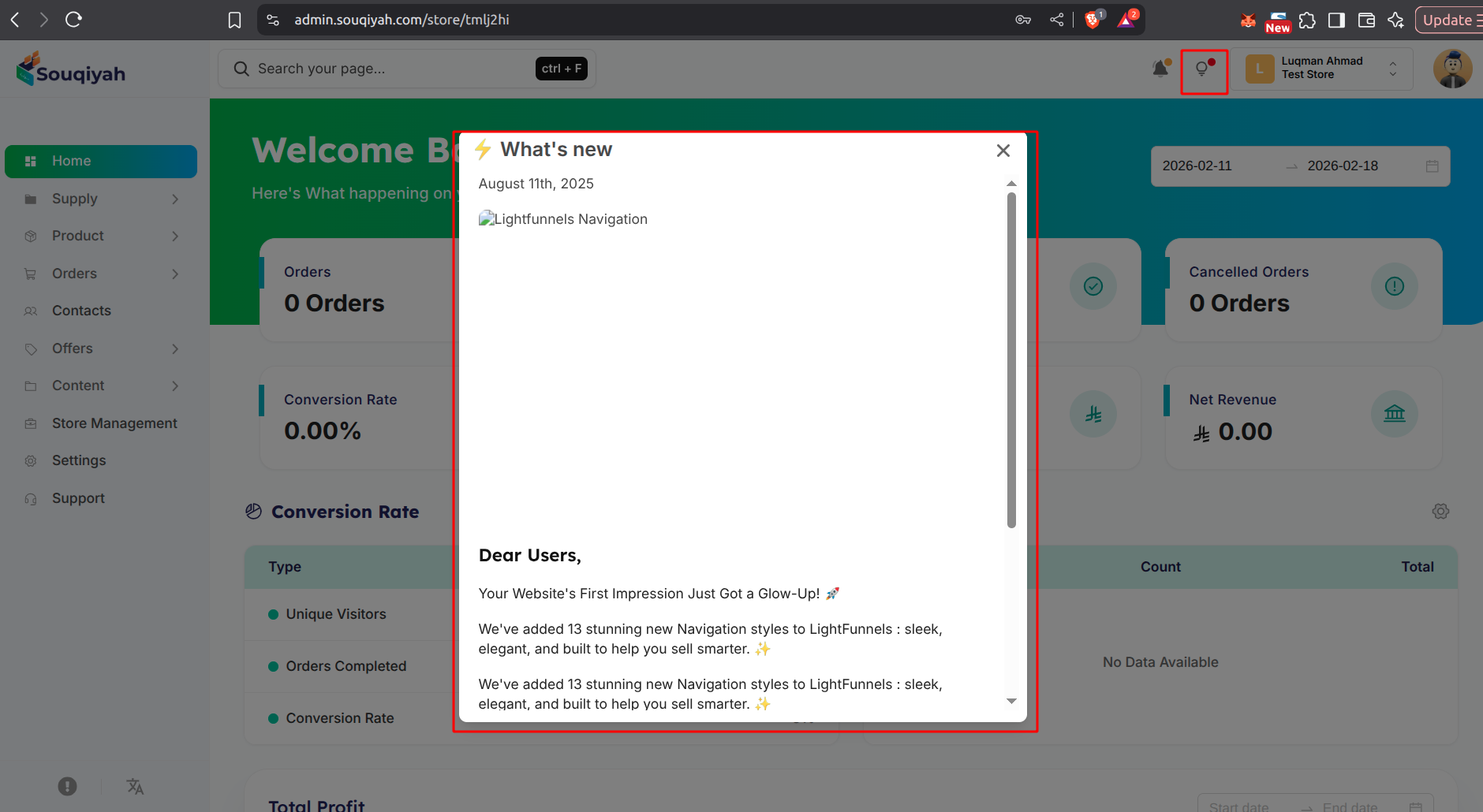
- Feature announcements
- Icon: Bulb
Notification Display
Each notification shows:
- Icon (by type)
- Title
- Order number (if applicable)
- Timestamp (relative time)
- Read/Unread indicator (blue dot for unread)
Step 3: Managing Notifications
Viewing Notifications
- Click the bell icon
- Dropdown opens with:
- Header: "Notifications (X)" (X = unread count)
- "Mark All As Read" checkbox
- List of notifications
- "View All Activity" link at bottom
Marking Notifications as Read
- Individual Notification:
- Click the notification
- Automatically marked as read
- Blue dot disappears
- Mark All as Read:
- Check "Mark All As Read"
- All notifications marked as read
- Unread count resets to 0
Notification Actions
- Click Notification:
- Marks as read
- Navigates to related page (if applicable)
- Example: Order notification → Order details
- View All Activity:
- Click "View All Activity" at bottom
- Opens full activity log
- See all notifications
Step 4: Real-Time Notifications
How Real-Time Works
- WebSocket Connection:
- Automatic connection on login
- Real-time updates
- No page refresh needed
- Notification Delivery:
- Instant delivery
- Appears in dropdown
- Badge count updates
- Notification Events:
- New order created
- Order status changed
- Payment received
- System alerts
Step 5: Notification Settings
Configuring Notifications
- Access Settings:
- Go to Store Settings → Notifications
- Or Account Settings → Notifications
- Available Settings:
- Email notifications
- In-app notifications
- Notification types
- Frequency settings
- Notification Preferences:
- Order notifications: On/Off
- Payment notifications: On/Off
- Shipping notifications: On/Off
- System notifications: On/Off
Step 6: Recent Activity Overview
Activity Types Tracked
- Order Activities:
- New orders
- Order updates
- Order cancellations
- Order deliveries
- Product Activities:
- New products added
- Product updates
- Inventory changes
- Customer Activities:
- New customers
- Customer updates
- Customer interactions
- System Activities:
- Settings changes
- User actions
- System updates
Viewing Recent Activity
- From Dashboard:
- Recent Orders table
- Activity indicators
- Status changes
- From Notifications:
- Click "View All Activity"
- Full activity log
- Filtered by type/date
Step 7: Notification Best Practices
Managing Notification Overload
- Regular Review:
- Check notifications daily
- Mark as read regularly
- Archive old notifications
- Priority Settings:
- Configure important notifications
- Set up email alerts for critical events
- Use filters to focus on key activities
- Team Coordination:
- Share notification responsibilities
- Set up team alerts