
Understanding the Dashboard Overview
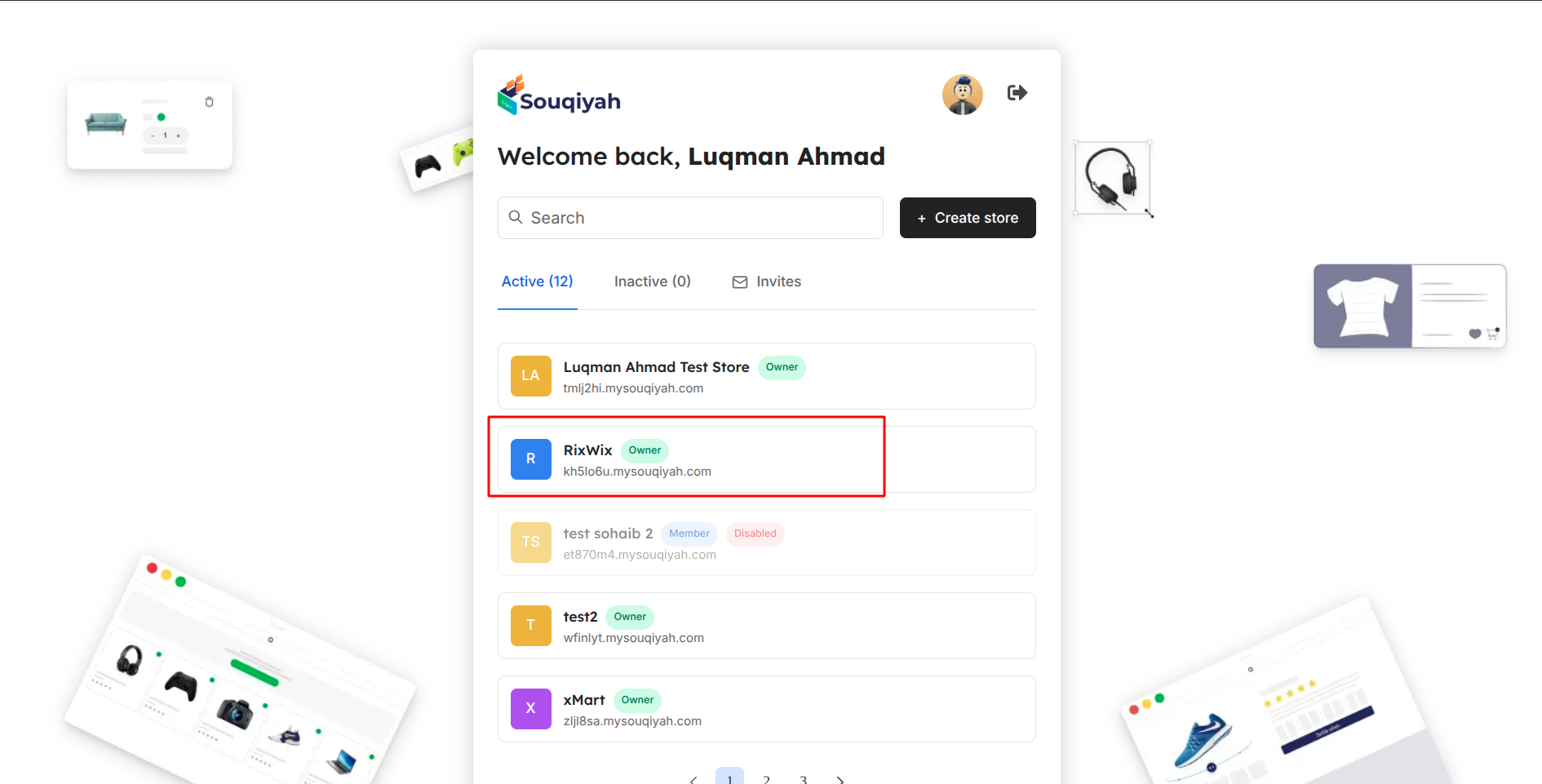
Step 1: Accessing Your Dashboard
- Log in to Souqiyah
- You’ll land on the dashboard with stores list.
- The dashboard shows your store’s performance
Step 2: Dashboard Layout Overview
The dashboardincludes:
A. Welcome Banner (Top Section)
- Personalized greeting: "Welcome, [Your Name] 👋🏻"
- Description: "Here's what's happening on your store today"
- Quick action: "Add Product" button (if you have permission)
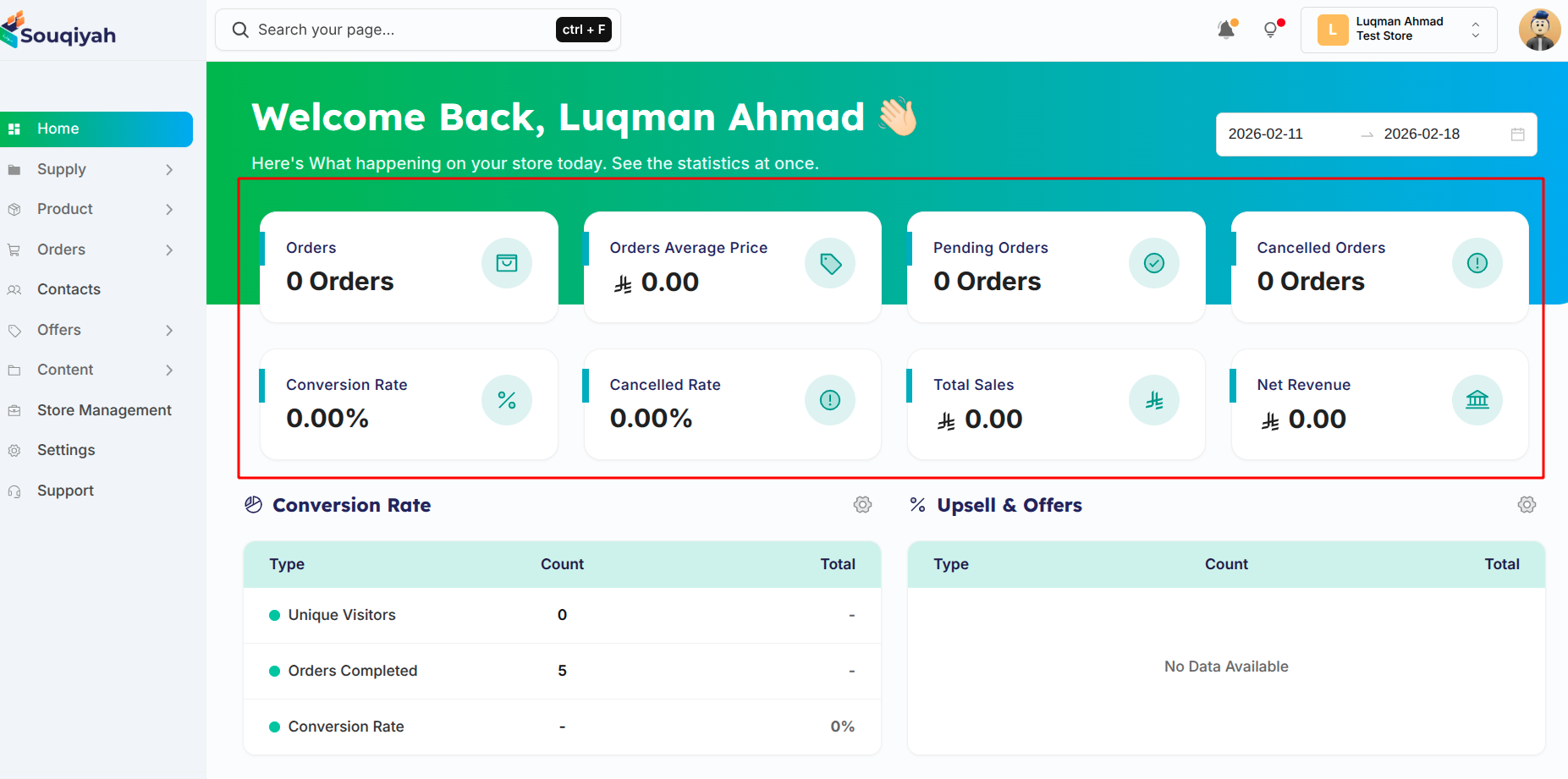
B. Statistics Cards (Key Metrics)
Located below the welcomebanner. Shows:
- Orders
- Total orders count
- Icon: Shopping bag
- Example: "150 Orders"
- Orders Average Price
- Average order value
- Currency formatted
- Example: "SAR 250.00"
- Pending Orders
- Unread/pending orders
- Icon: Check circle
- Example: "12 Orders"
- Cancelled Orders
- Cancelled count
- Icon: Warning circle
- Example: "5 Orders"
- Conversion Rate
- Percentage
- Icon: Percent
- Example: "3.5%"
- Cancelled Rate
- Cancellation percentage
- Icon: Warning circle
- Example: "2.1%"
- Total Sales
- Total revenue
- Currency formatted
- Icon: Dollar
- Example: "SAR 37,500.00"
- Net Revenue
- Net profit after expenses
- Currency formatted
- Icon: Bank
- Example: "SAR 35,000.00"
C. Conversion & Upsell Cards
- Conversion metrics
- Upsell performance
- Customer engagement metrics
D. Profit Widget
- Visual profit chart
- Time-based trends
- Interactive chart
- Height: ~464px (520px on larger screens)
E. Sales Report
- Sales performance chart
- Time period analysis
- Visual trends
F. Recent Orders Table
Columns:
- Selection checkbox
- Customer (name/avatar)
- Item (product name)
- Quantity
- Total (order amount)
- Payment (method/status)
- Created (date/time)
- Status (badge)
- Actions (view/edit)
Features:
- Click order to view details
- Filter and search
- Pagination
- Bulk actions
G. Sales Revenue Trend
- Revenue trend chart
- Time period analysis
- Visual representation
H. Repeat Customer Rate
- Percentage of returning customers
- Customer loyalty metrics
- Visual chart
I. Best Sellers
- Top-performing products
- Sales volume
- Product rankings
J. User Location Map
- Geographic distribution
- Customer locations
- Interactive map
Step 3: Understanding Time Filters
The dashboardsupports time-based filtering:
- Accessing Filters
- Filter dropdown (if available)
- Default: "Today"
- Available Filter Options
- Today
- This Week
- This Month
- This Year
- Custom Range
- Applying Filters
- Select a period
- Statistics update automatically
- Charts refresh
Step 4: Dashboard Responsiveness
- Desktop: Full layout
- Tablet: Adjusted grid
- Mobile: Stacked layout
3. Recent Activity & Notifications
Step 1: Accessing Notifications
- Location: Top right header
- Icon: Bell icon with badge
- Badge: Shows unread count (orange dot)
Step 2: Understanding Notifications
Notification Types
- Order Notifications
- New order received
- Order status changed
- Order cancelled
- Order delivered
- Icon: Parcel/Map
- Payment Notifications
- Payment received
- Payment failed
- Refund processed
- Icon: Shopping bag
- Shipping Notifications
- Order shipped
- Delivery updates
- Tracking updates
- Icon: Truck
- General Notifications
- System updates
- Account changes
- Feature announcements
- Icon: Bulb
Notification Display
Eachnotificationshows:
- Icon (by type)
- Title
- Order number (if applicable)
- Timestamp (relative time)
- Read/Unread indicator (blue dot for unread)
Step 3: Managing Notifications
Viewing Notifications
- Click the bell icon
- Dropdown opens with:
- Header: "Notifications (X)" (X = unread count)
- "Mark All As Read" checkbox
- List of notifications
- "View All Activity" link at bottom
Marking Notifications as Read
- Individual Notification:
- Click the notification
- Automatically marked as read
- Blue dot disappears
- Mark All as Read:
- Check "Mark All As Read"
- All notifications marked as read
- Unread count resets to 0
Notification Actions
- Click Notification:
- Marks as read
- Navigates to related page (if applicable)
- Example: Order notification → Order details
- View All Activity:
- Click "View All Activity" at bottom
- Opens full activity log
- See all notifications
Step 4: Real-Time Notifications
How Real-Time Works
- WebSocket Connection:
- Automatic connection on login
- Real-time updates
- No page refresh needed
- Notification Delivery:
- Instant delivery
- Appears in dropdown
- Badge count updates
- Notification Events:
- New order created
- Order status changed
- Payment received
- System alerts
Step 5: Notification Settings
Configuring Notifications
- Access Settings:
- Go to Store Settings → Notifications
- Or Account Settings → Notifications
- Available Settings:
- Email notifications
- In-app notifications
- Notification types
- Frequency settings
- Notification Preferences:
- Order notifications: On/Off
- Payment notifications: On/Off
- Shipping notifications: On/Off
- System notifications: On/Off
Step 6: Recent Activity Overview
Activity Types Tracked
- Order Activities:
- New orders
- Order updates
- Order cancellations
- Order deliveries
- Product Activities:
- New products added
- Product updates
- Inventory changes
- Customer Activities:
- New customers
- Customer updates
- Customer interactions
- System Activities:
- Settings changes
- User actions
- System updates
Viewing Recent Activity
- From Dashboard:
- Recent Orders table
- Activity indicators
- Status changes
- From Notifications:
- Click "View All Activity"
- Full activity log
- Filtered by type/date
Step 7: Notification Best Practices
Managing Notification Overload
- Regular Review:
- Check notifications daily
- Mark as read regularly
- Archive old notifications
- Priority Settings:
- Configure important notifications
- Set up email alerts for critical events
- Use filters to focus on key activities
- Team Coordination:
- Share notification responsibilities
- Set up team alerts
- Coordinate response workflows
Unsupported block: delimiter
Quick Reference: Dashboard Checklist
- [ ] Understand dashboard layout
- [ ] Review statistics cards
- [ ] Check recent orders
- [ ] Monitor conversion metrics
- [ ] Review profit trends
- [ ] Check notifications regularly
- [ ] Use quick actions efficiently
- [ ] Customize dashboard view (if available)
- [ ] Set up notification preferences
- [ ] Monitor best sellers
Unsupported block: delimiter
Troubleshooting Dashboard Issues
Issue: Statistics Not Loading
- Solution: Refresh the page, check internet connection, verify store is active
Issue: Notifications Not Appearing
- Solution: Check WebSocket connection, verify notification settings, refresh page
Issue: Dashboard Looks Different
- Solution: Check screen size, verify permissions, clear browser cache
Issue: Can't See Quick Actions
- Solution: Verify user permissions, check if store is active, contact admin
Issue: Recent Orders Not Showing
- Solution: Check if orders exist, verify filters, check date range
Unsupported block: delimiter
Tips for Effective Dashboard Usage
- Daily Check Routine:
- Review statistics cards
- Check pending orders
- Review notifications
- Monitor conversion rates
- Weekly Analysis:
- Review sales trends
- Analyze best sellers
- Check customer metrics
- Review profit performance
- Monthly Review:
- Compare monthly statistics
- Analyze growth trends
- Review customer retention
- Plan improvements
- Quick Actions Efficiency:
- Use "Add Product" for quick additions
- Click orders directly from table
- Use sidebar for quick navigation
- Leverage keyboard shortcuts
Unsupported block: delimiter